
Do you have multiple Jira Cloud applications to manage? Here’s how they all work together in the Atlassian organization and site model.
But first, if you’re wondering how companies end up with multiple Atlassian organizations, sites, and applications, there are many potential reasons. Maybe there are domestic and international offices so different applications are used to accommodate data residency or language differences. Maybe your company purchased another company and now you have multiple orgs and applications to merge or manage. Sometimes a separate application is created to segment sensitive data. Other times, teams create their own applications and admins don’t learn they exist until a configuration question is asked. (Yikes!) And less commonly, if you’re a consultant like me, you likely have access to multiple orgs, sites, and products. For example, I have access to all my customers’ applications, I have my own internal application, and I have multiple others for demos, screenshots, and creating courses.
Atlassian Model
Before I explain a sample Atlassian user account model, let’s define some related terms.
Terms to Know
- Organization – centralized users and applications. A container for Atlassian apps like Jira, Confluence, and Bitbucket, and their users.
- Site – a container for one or more Atlassian apps. Each organization has a site with a unique url in the format site-name.atlassian.net.
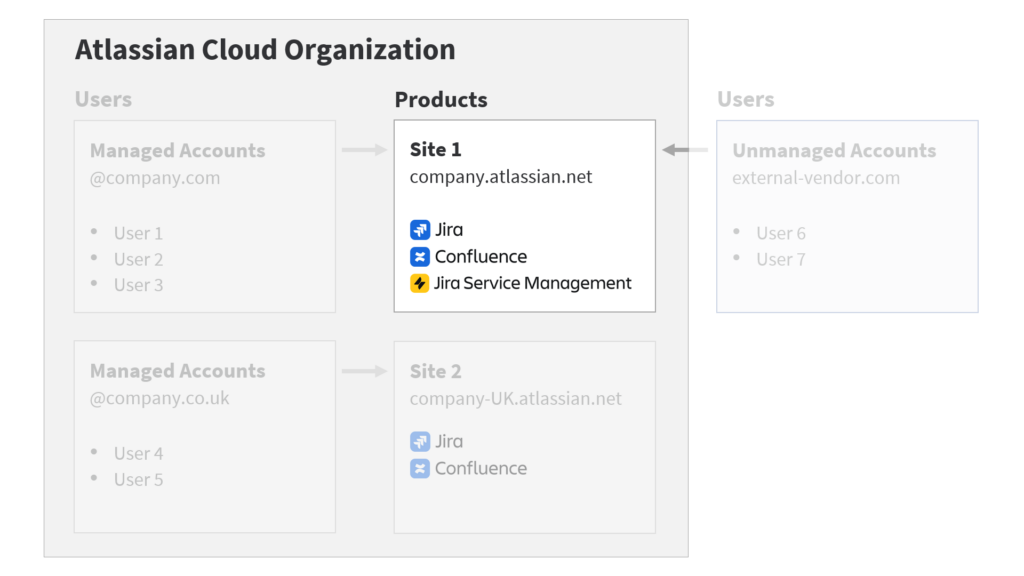
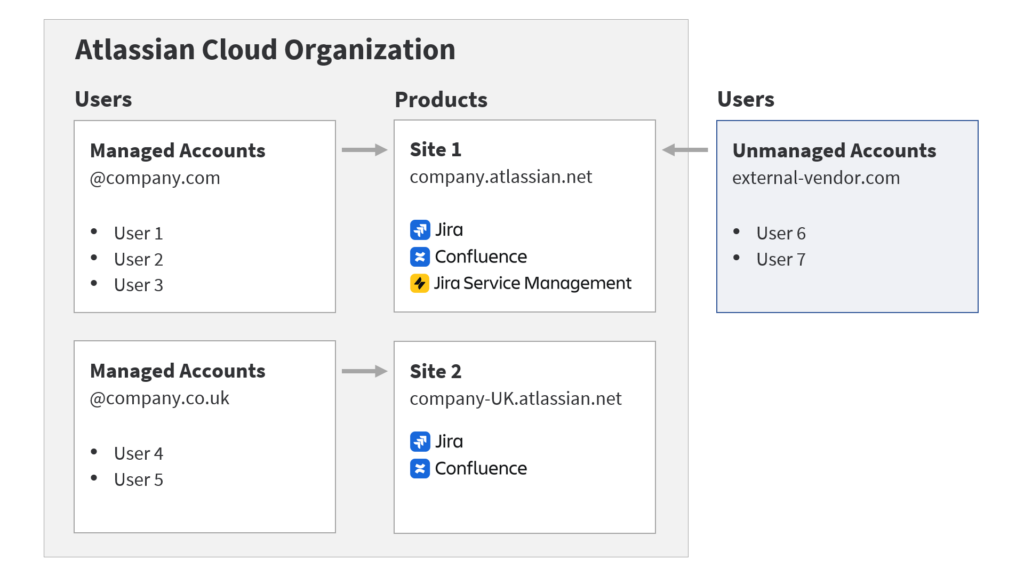
Atlassian Cloud organizations can contain multiple sites, applications, and users. Each site contains a list of unique applications. Here’s an example. This organization has a site at the URL company.atlassian.net. The site has 3 applications: Jira, Confluence, and Jira Service Management.
If needed, an organization can have multiple sites with multiple distinct applications. In the example, there’s a second site for the company’s UK office with a different site URL. The second site has separate Jira and Confluence applications.
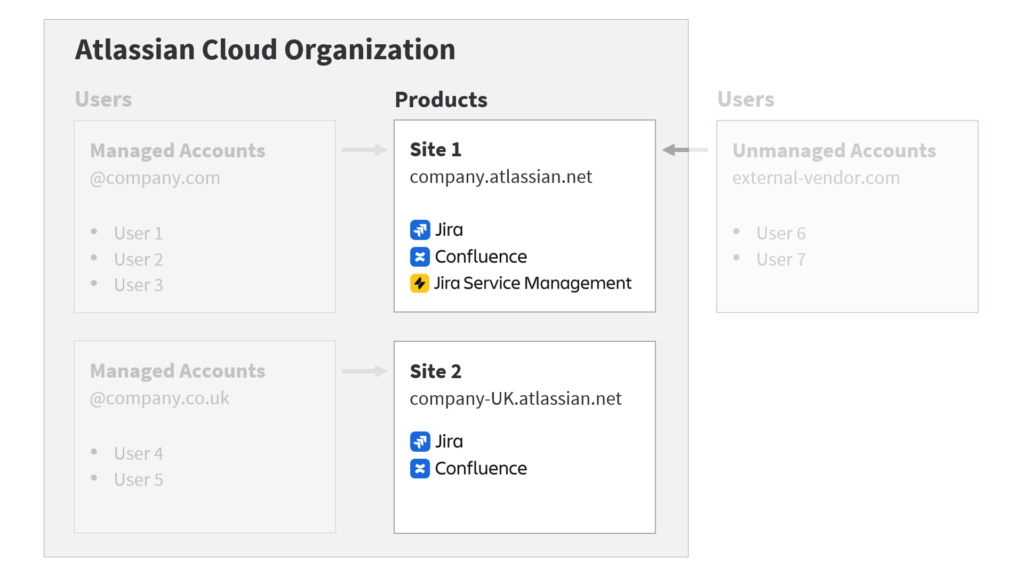
All applications and sites are part of the same organization.
User Accounts and Domains
Next, here are some terms related to user accounts and claiming ownership in the Atlassian ecosystem.
Terms to Know
- Atlassian account, Atlassian ID – a user’s online Atlassian identity. The account includes attributes like a first and last name and a unique email address.
- Domain – a unique address on the internet. E.g., company.com or externalvendor.com. When a domain is verified with Atlassian you confirm ownership of the domain and claim all user accounts in that domain.
- Managed account – a user in a claimed domain. When an Atlassian account is part of a claimed domain, it’s called a “managed”. Admins can edit, delete, or deactivate managed accounts or apply security policies like two-factor authentication or single sign-on.
Atlassian Cloud accounts allow users to login to Atlassian applications with one set of credentials. It’s similar to a Google account, where one username grants access to multiple products like Gmail, Docs, and YouTube.
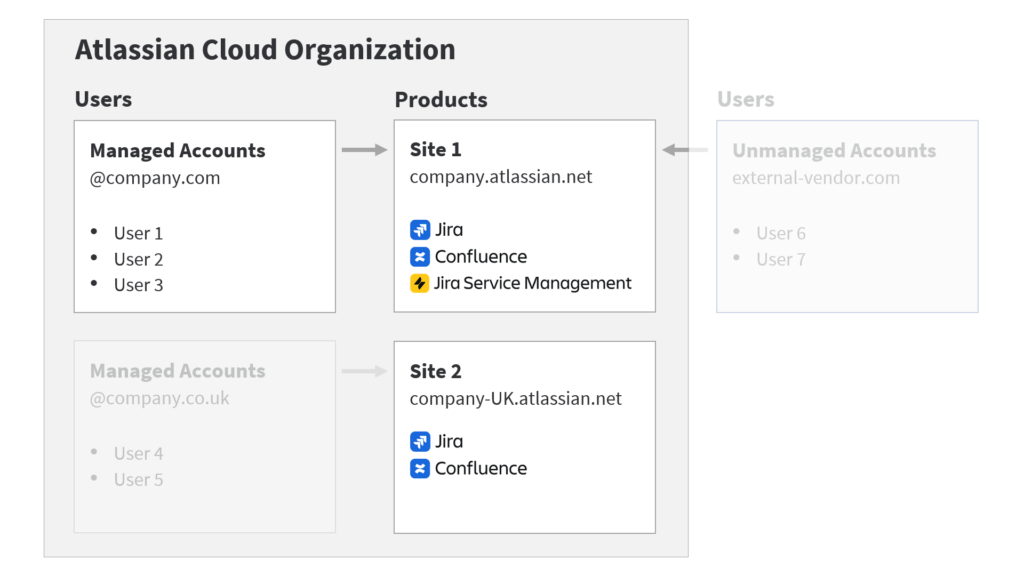
The example shows a verified domain and three user accounts with @company.com email addresses. These users have access to their organization’s applications within site 1.
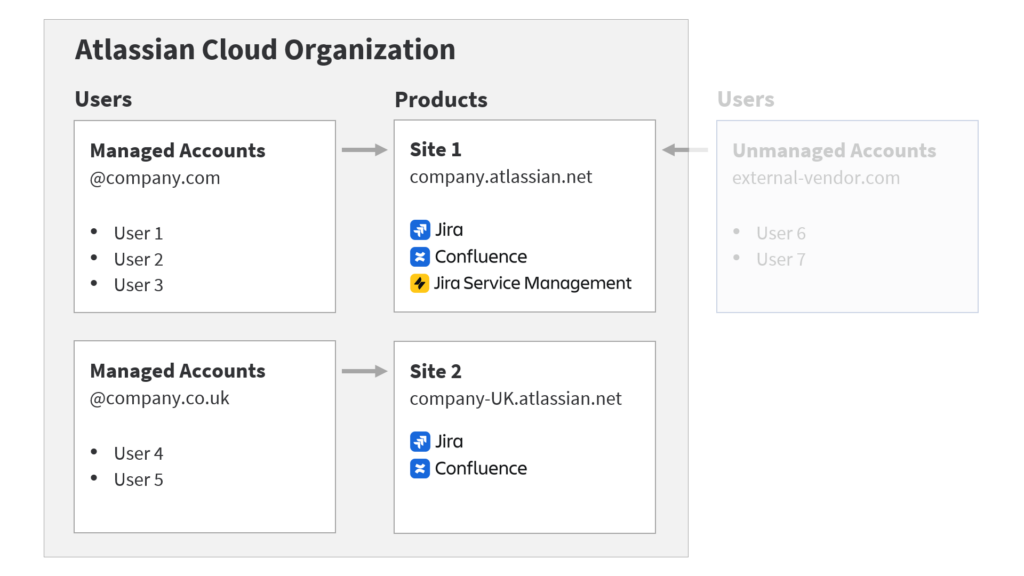
There’s also a second verified domain containing managed accounts for different users. The users with UK email addresses have access to their organization’s applications within site 2.
Tip: Organizations can have multiple verified domains. Domains can also be verified by multiple organizations. (Not pictured.)
Finally, there are two additional users that are part of the externalvendor.com domain. I can’t claim that domain, because my organization doesn’t own it. But I can still give those users access to Atlassian applications. Since those external user accounts are not part of my organization, I can’t manage them or apply global security policies.
Managing Orgs, Products, and Users
In Cloud, a user with org-admin or site-admin permissions manages all organization settings at admin.atlassian.com. Think of the org-admin permission as a “super admin”. These users can do anything there is to do. Depending on when your organization was created, you might have a group called org-admins, site-admins, or both.