
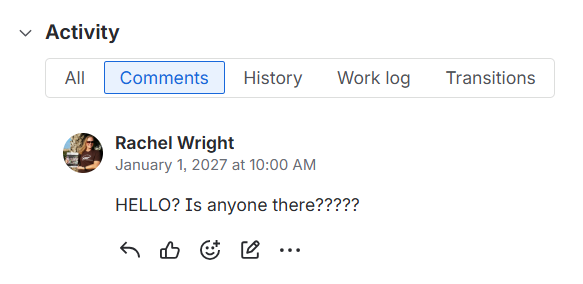
A Jira item was created, but its been a week and you’ve heard nothing. The item hasn’t been updated and you can’t tell if anyone’s seen the item, triaged it, started work, or done “something” to get it addressed in the near future. Does this sound familiar?
When items stagnate, it may be because the needed expectations haven’t been set. Leadership needs to ensure overall Jira engagement and Project Managers and leads need to play a large role in triaging and managing items in their individual spaces. Here are 9 tips for setting the right expectations and getting users to take action in Jira.
1. All work is logged in Jira
- It is hard to track strategic priorities, capacity, and resource allocation when work is stored in multiple systems. Strive to decommission old systems and banish low tech tracking methods like spreadsheets and Post-it notes. You need “one source of truth” for everything teams are working on.
- In meetings, emails, and chats about work, encourage users to provide the Jira ID for the item they are discussing. Repeat the phrases “Which Jira item are we talking about?” and “If it’s not in Jira, it’s not real!” until it becomes reality.
2. Users login to check their items at least once a day
- A tool is just a tool. It takes human action and engagement to make it work in your organization. If users aren’t regularly logging in, they are missing what is going on around them.
- Make sure users are proactively logging into Jira to review items created and assigned to them. Waiting around for Jira to send email notifications is reactive. Jira info in email quickly becomes out of date. Email should be treated as supplemental information and never be the primary engagement method.
3. The “Assignee” takes action
- Each item has a single assignee. The name in that field is the person who needs to take action. If the name is incorrect or reads “Unassigned”, it’s easy to reassign the item to the correct person.
- Users should feel empowered to update or correct item data, even if they are not the current assignee.
4. The “Reporter” is ultimately responsible for the item
- You cannot create an item and walk away, expecting the item to champion and remedy itself. The “Reporter” is responsible for the item from conception to completion. If the reporter is no longer the responsible party, it’s easy to update the item to the correct person. And don’t worry – Jira keeps a record the original creator in a separate field for audit purposes.
5. Share the assignment strategy
- There are many ways items get assigned in Jira. Each space has a default assignee setting. The default assignee can either be the Space Lead, or it can have a value of “Unassigned.” The former is typically used when the team lead will triage items and assign them to the correct team member. The latter is sometimes used when the whole team is expected to review the items and assign the ones they can work on to themselves.
- There’s also another assignment strategy, using Components. Each Component can have its own lead and items can automatically be assigned to that person. For example, James does all the contract work for the Legal team. When an item is created in the LEGAL space, any items where the “Contracts & Agreements” component is selected will be automatically assigned to James.
- Finally, work can automatically be assigned using automation rules, AI, and third-party apps.
- Tip: Avoid the trap of assigning items to a generic Jira user or service account, like a user named “Legal Team”. It’s often true that if an item is assigned to everyone, it’s assigned to no one. It items require work from multiple people, it means they are two big and need to be broken down into multiple separate tasks or sub-tasks. How are items assigned in each space in your organization? Make sure users know so they know how to act.
6. Utilize standard and custom views
- Jira provides many ways to users to see items. All users should know how to login and go straight to their favorite list, board, dashboard, calendar, timeline, or Jira Plan. The Jira administration team can customize the default dashboard to add elements to make it even more useful.
- Users can also create their own custom filters and views. Encourage each team or department to have a view they share and monitor regularly. Users can bookmark or “favorite” these locations to make them easy to return to.
7. Use statuses, backlogs, versioning, and dates
- Statuses, backlogs, versions, and dates all communicate when an item will be addressed. Each item’s status must reflect reality. Users need to transition items forward in the workflow as they work them. Completed items must reach the “Closed”, “Done” or similar final status.
- Every Jira space should have a backlog – a place to put items not addressed immediately. If a team member finishes work early, encourage them to review the backlog, to see if an item can be accommodated earlier in the schedule.
- If an item is not in the backlog, it means it is being actively worked. Development teams should utilize the “version” functionality to assign items to a specific release target. Non dev teams can also leverage versions. Example: A Marketing team has a version called “Q1” representing all the work targeted for January through March.
- Tip: Use a custom date field (E.g., Requested date) to collect the item’s proposed completion date. Use the standard “Due date” field to indicate when an item will actually be completed or released.
8. Tag users, share items, and add watchers
- To get a user’s attention, tag them in an item’s “Description” or “Comments” field. Use the “@” symbol to mention a specific user. They will receive an email about the mention.
- Need to alert someone to an item? Use the “Share” button at the top right to send them an email.
- Add yourself or a colleague to email update notifications by making them a “Watcher” of any item.
- Tip: Emails are often lost, delayed, or out of date by the time they are read. Users should always login to Jira for real-time information.
9. Check progress in team meetings, standups, and scrums
- The key to success is communication. No tool or AI agent can replace human interaction. Each team meeting should include a discussion of what’s being worked now and what’s being worked next. Launch Jira in your meeting and review the items on the team’s board, dashboard, timeline, or Jira plan. Take the time to discuss any unassigned items in your Jira space and regularly refine the backlog.
- Team leads need to regularly monitor their Jira space and follow up on stagnant or blocked items.
The key to Jira success is encouraging engagement, setting expectations, and proactively monitoring work. All users should feel empowered to update items, correct information, and contribute to the health of the application and its data.
BONUS TIP: Leverage automation and AI
- Use AI to find stagnant items and automation to politely remind users to take action.
- Not using AI yet? Create a Jira filter subscription to send an email containing all work items not assigned or updated in the last x days.
What are your tips? Share them in the “Comments” section below.