
Jira has multiple ways to link related work together. Use the methods below to connect work so teams can show hierarchy, dependencies, and other relationships clearly. The examples show how these relationships appear in Jira and how to query them with JQL.
Method 1: Creating Sub-tasks
This method creates an inherent relationship between parent items like Stories, Bugs, or Tasks and child Sub-tasks. In the screenshot below, THD-5 and THD-6 are Sub-tasks of Task THD-4.
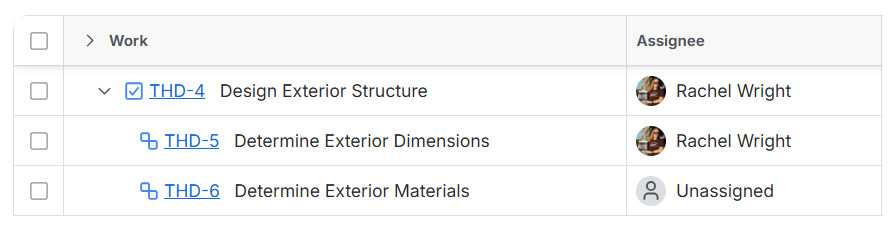
A parent/child bond is very strong. For example, if you move a parent item to a different space, its children automatically move too. If you add a parent to a sprint, its children are added too. A Sub-task always has a parent. Query for child items using a JQL statement in the format: parent = THD-4.
Method 2: Using the “Parent” field
The parent field creates hierarchy between work items. This method is best for associating work with high-level containers like Epics. The parent field was previously named Epic Link and Parent Link. If you still see these fields in your app, just ignore them and use parent instead.
In the screenshot below, Epic THD-1 is the parent of Story THD-2. Use the parent field to leverage work types to group work and establish parent child relationships.
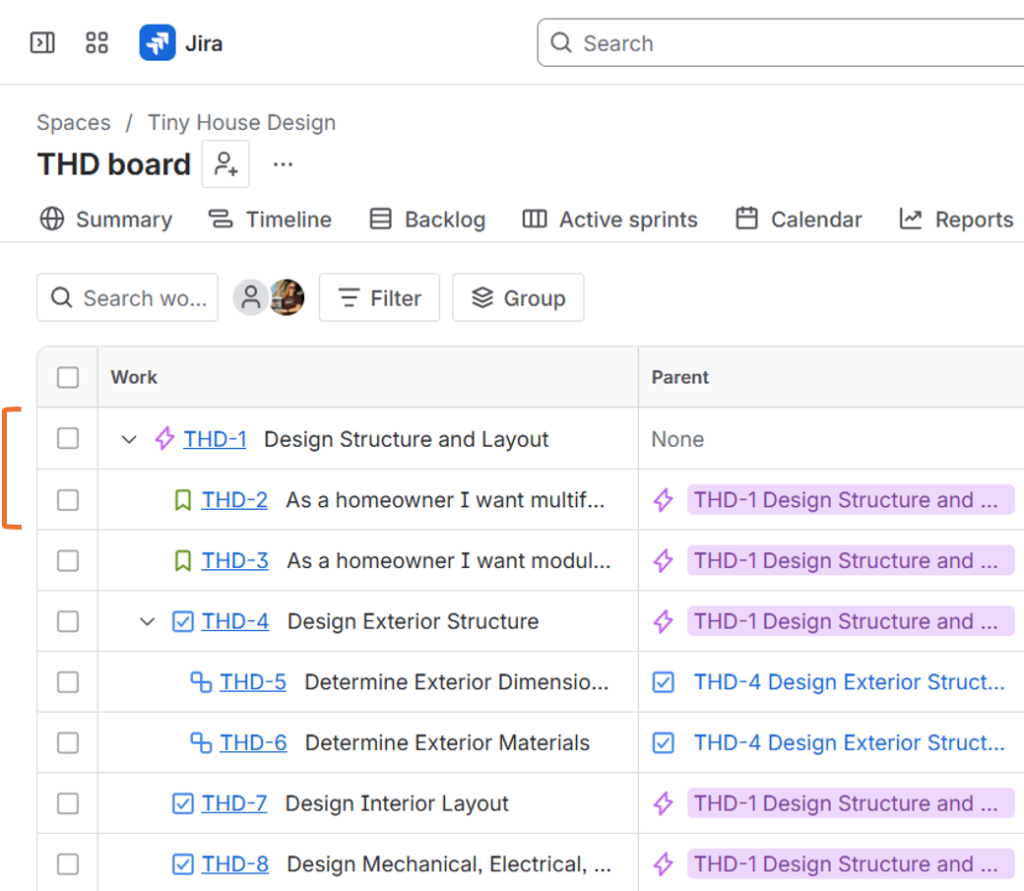
In Jira Cloud Premium and Enterprise, additional hierarchy levels above the Epic are possible. These levels are often named “Initiative”, “Theme”, “Goal”, or whatever makes sense to track strategic priorities in your organization. If your app doesn’t have the desired hierarchy capabilities, you can add functionality with third-party apps in the Atlassian Marketplace.
Method 3: Using the “Linked work items” function
Use the “Linked work items” function to link any item to another – regardless of Jira space or type. This method also allows you to select a link type.
For example, use the blocks or depends on link type to create strong dependencies between work. Use the relates to or clones link type to create softer relationships and help users find similar work.
Linking a Work Item
Click the plus (+) icon under any item’s summary and select “Link work item“. In the “Linked work items“ section, select the type of link from the drop down menu. Then select the Jira item to link to and click the form submission button.
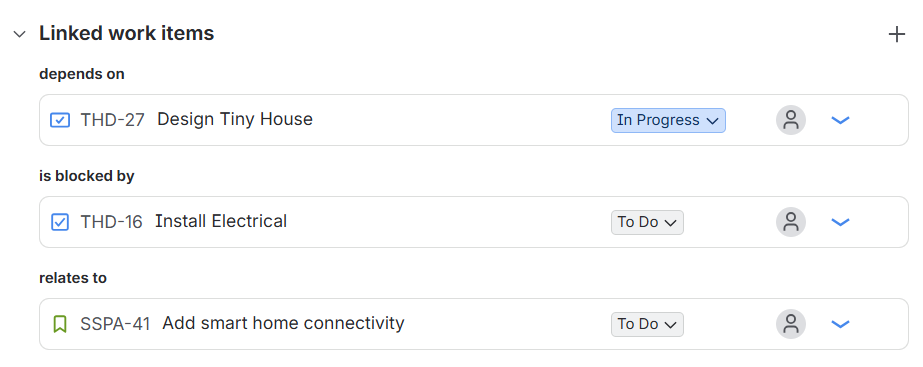
In the screenshot below, the item has three links. This item depends on THD-27, is blocked by THD-16, and relates to SSPA-41.
Link Type Selections
There are many link type selections to choose from. For example:
| Outward Description | Inward Description |
|---|---|
| blocks | is blocked by |
| clones | is cloned by |
| duplicates | is duplicated by |
| implements | is implemented by |
| reviews | is reviewed by |
| causes | is caused by |
| relates to | relates to |
| and more |
Jira administrators can also add additional custom link types.
Querying for Linked Work
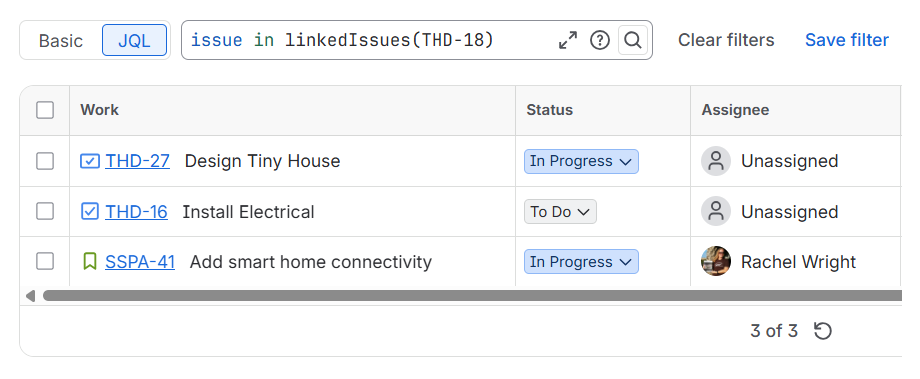
By adding links and selecting link types, users can search for work using JQL. In the screenshot below, the query returns multiple items linked to THD-18.
Example Queries
All work linked to a specific item
- issue in linkedIssues(THD-18)
All work linked to a specific item with a specific link type
- issue in linkedIssues(ID, Link Type)
- issue in linkedIssues(THD-18, “relates to”)
- issue in linkedIssues(THD-18, blocks)
- issue in linkedIssues(THD-18, duplicates)
Tip: Don’t forget to enclose multiple words like “relates to” in quotes.