
Are you still opening Jira to search Jira? That’s so 2020! There’s a much faster way. Instead, use your browser’s “search engines” feature to quickly jump to Jira spaces, work items, JQL search results, and more. No navigation or clicks required! Once your favorite searches are set up, simply type a specific set of characters to jump straight to your favorite Jira locations! This trick is fast to setup and the possibilities are endless.
How it Works
Example 1: Open a Work Item
For this example, I’ll use the “w” key (for “work item”) as my chosen shortcut. In the browser’s address bar, type the letter “w“, then type the tab key, then type a Jira item key, then type the enter key.
Example: w [tab] DEV-1
After typing “w” and the tab (or space) key, the address bar changes to a search bar that looks like the screenshot below. After typing “DEV-1” and the “enter” key, the browser opens the DEV-1 work item in Jira.

Example 2: Execute a JQL Search
For this example, I’ll use the letters “js” (for “Jira search”) as my chosen shortcut. In the browser’s address bar, type the letters “js“, then type the tab key, then type a JQL query, then type the enter key.
Example: js [tab] priority = highest
After typing “js” and the tab (or space) key, the address bar changes to a search bar that looks like the screenshot below. After typing “priority = highest” and the “enter” key, the browser opens the Jira search page showing the list of all highest priority items.

Setup Instructions
Here’s how to set up your own custom searches. These instructions are for Google Chrome or any chromium-based browser. (Example: Brave, Microsoft Edge, Opera, Island, etc.) You can also use this tip in other browsers. Here are Firefox instructions, for example.
Let’s setup the letter “s” to go to a specific Jira space.
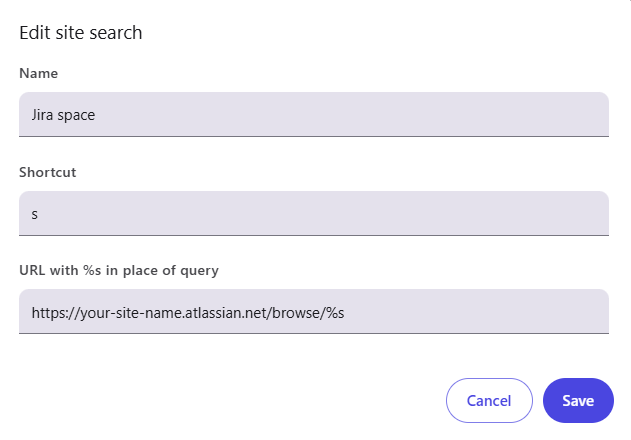
- Launch a Chrome or chromium browser window.
- Right click in the address bar and select “Manage search engines and site search”.
- Scroll down to the “Site search” area and click the “Add” button on the right.
- In the “Add site search” overlay:
- In the “Name” field, enter a descriptive name for what you’re searching for. Example: Jira space
- In the “Shortcut” field, enter a unique keycode to trigger the shortcut. Example: s or :s or @s or jiraspace or any key combo you’d like
- In the “URL with %s in place of query” field, enter a URL and substitute %s for the search term. Example: If your space’s URL is https://your-site-name.atlassian.net/browse/DEV, change it to https://your-site-name.atlassian.net/browse/%s
- Click the form submission button.
The “%s” in the URL is a variable that represents whatever you’re searching for. See more sample URLs in the table below.
That’s it! Now let’s test it. In the browser’s address bar, type the letter “s“, then type the tab key, then type a Jira space key, then type the enter key.
Example: s [tab] DEV
The browser will take you directly to the specified Jira space.
Sample Jira URLs
To craft other Jira search URLs, simply find a location in Jira, copy the URL in the address bar, and substitute “%s” for the variable search term. Here are some example formats to try:
| Example | URL Format | What %s Represents |
| Space | https://your-site-name.atlassian.net/browse/%s | Space key (Example: DEV) |
| Work item | https://your-site-name.atlassian.net.atlassian.net/browse/%s | Item key (Example: DEV-1) |
| Dashboard | https://your-site-name.atlassian.net/jira/dashboards/%s | Dashboard ID (Example: 10000) |
| JQL search | https://your-site-name.atlassian.net.atlassian.net/issues/?jql=%s | JQL query (Example: text ~ typo) |
| Filter | https://your-site-name.atlassian.net.atlassian.net/issues/?filter=%s | Filter ID (Example: 12345) |
| Jira plan | https://your-site-name.atlassian.atlassian.net/jira/plans/%s | Plan ID (Example: 1) |
Other Applications and Websites
You can use this same trick with other applications and websites that have predictable URL search patterns like, Confluence, Dictionary.com, X/Twitter, and even your own website. I frequently use d [tab] term to look up a word’s definition at dictionary.com.
Have a useful Jira tip to share? Add it to the comments below!
Thanks! This was very useful. I’ve found I can also use https://your-jira-urlcom/secure/QuickSearch.jspa?searchString=%s
Returns results for issues, projects, and keywords all-in-one.