Tip Relates To
| Application Type | Jira, Jira Service Management, Confluence, and more |
| Deployment Type | Cloud Standard, Premium, and Enterprise |
| Audience | End users and power users |
| Category | Rovo, AI (Artificial Intelligence) |
Tip
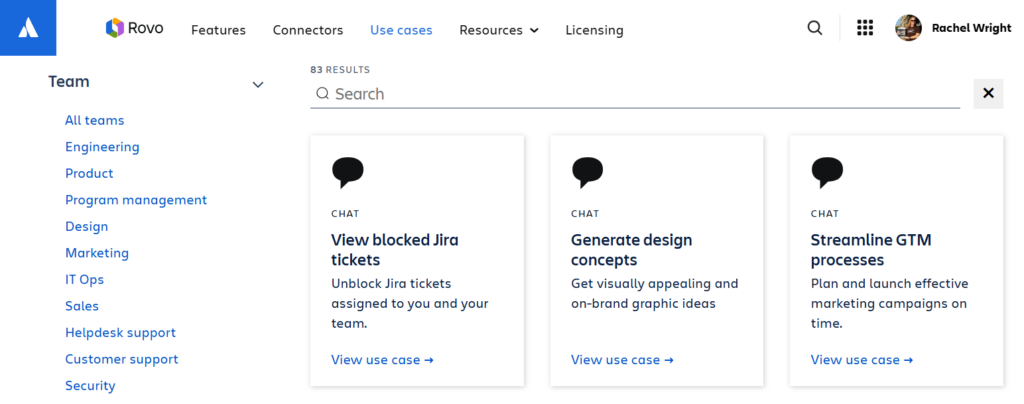
Need some AI examples or inspiration? Use Atlassian’s library of sample agents to customize and prompts to try. For example, use the Readiness Checker agent to evaluate new stories for completeness and clarity or use the Summarize open Jira tickets prompt to create a Confluence page with relevant incomplete work details. See all library examples: https://www.atlassian.com/software/rovo/use-cases
Explanation
Some users are leveraging Rovo and others are AI-curious but have no idea how to get started! Inspire new AI users with some easy examples to remove the intimidation factor.
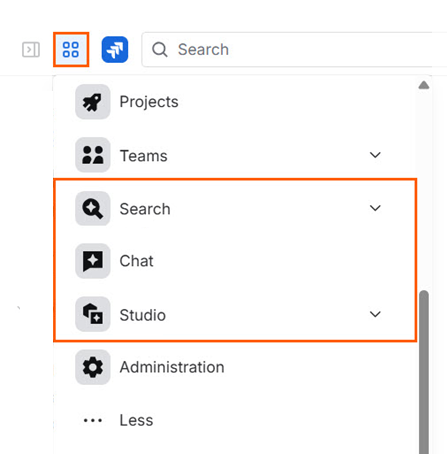
Rovo is automatically activated for all paid plans. Its AI features need to be activated by an Organization admin however. To check activation status, visit admin.atlassian.com and click “Apps” in the left sidebar. If Rovo is active, it will be listed in the table. Additionally, end users will see apps called “Search”, “Chat” and “Studio” under the App switcher icon at the top left of any Jira page. To block apps, visit admin.atlassian.com > Rovo > Rovo access.
Resources
- Rovo activation – https://www.atlassian.com/software/rovo/guides/admin-guide/rovo-activation#confirm-activation
- How Rovo access works – https://support.atlassian.com/organization-administration/docs/manage-rovo-access
- Rovo onboarding guide for end users – https://www.atlassian.com/software/rovo/guides/end-user-guide/introduction