Tip Relates To
| Application Type | Jira, Jira Service Management, Confluence, and more |
| Deployment Type | Cloud |
| Audience | Application Administrators |
| Category | User Management |
Tip
Unlike other global settings, any user can create or delete global Atlassian teams. Global teams are different than plan-only teams used in Jira Plans and teams in other apps like Tempo. Encourage users to manage teams themselves by adding new team members when they join the organization and removing them when they leave. If a user accidentally deletes a global Atlassian team, it can be reactivated within 30 days. Users can access the list of global teams or add new teams by visiting home.atlassian.com and clicking the “Teams” link on the left sidebar.
Explanation
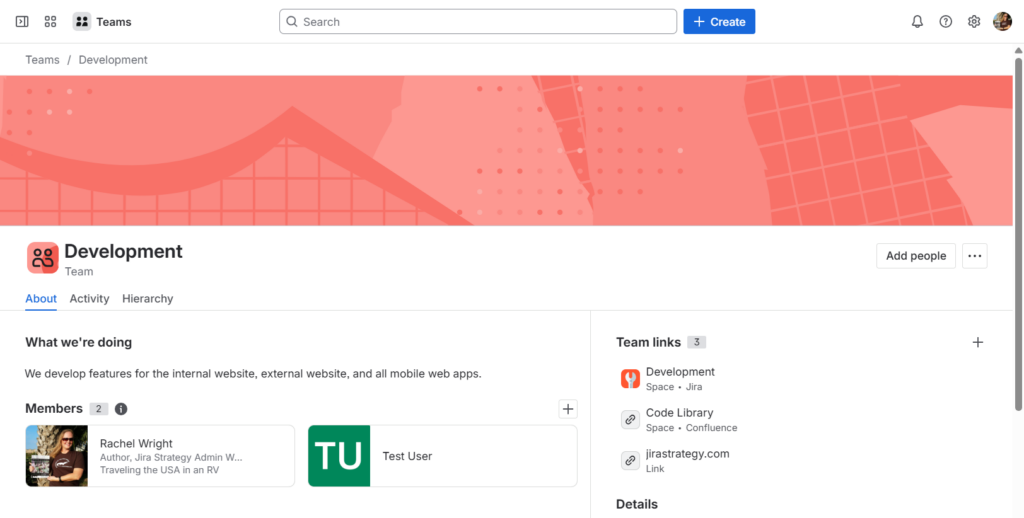
Teams exist to foster collaboration and communication across Atlassian apps. Teams are a global concept and are not app-specific. Use the “Team” field to specify a group of users who work together in individual Jira items and in Confluence spaces. You can also @mention a team or use the “Share” button at the top right of Jira items or Confluence pages. Finally, each team has a profile page (pictured above) which displays membership, links to Atlassian apps and external URLs, and recent activity.
Note: Users must have the Browse Users and Groups global permission to manage team settings and membership. There’s an open feature request for further restricting team management here: https://jira.atlassian.com/browse/JRACLOUD-81740
Resources
- Create and manage an Atlassian team – https://support.atlassian.com/platform-experiences/docs/start-an-atlassian-team